This toolbox has been tested with MATLAB versions R2016, although we expect it to work with older or newer versions. Operating systems used during testing were windows 10. To install the MATLAB toolbox simply download and unzip the GitHub toolbox into an appropriate location. Now, the main directories of the toolbox and numerical methods matrices should be added to the MATLAB with “addpath” and “cd” commands to install the toolbox. Note that the toolbox can be uninstalled by simply deleting its directory. So we can run the following in MATLAB:
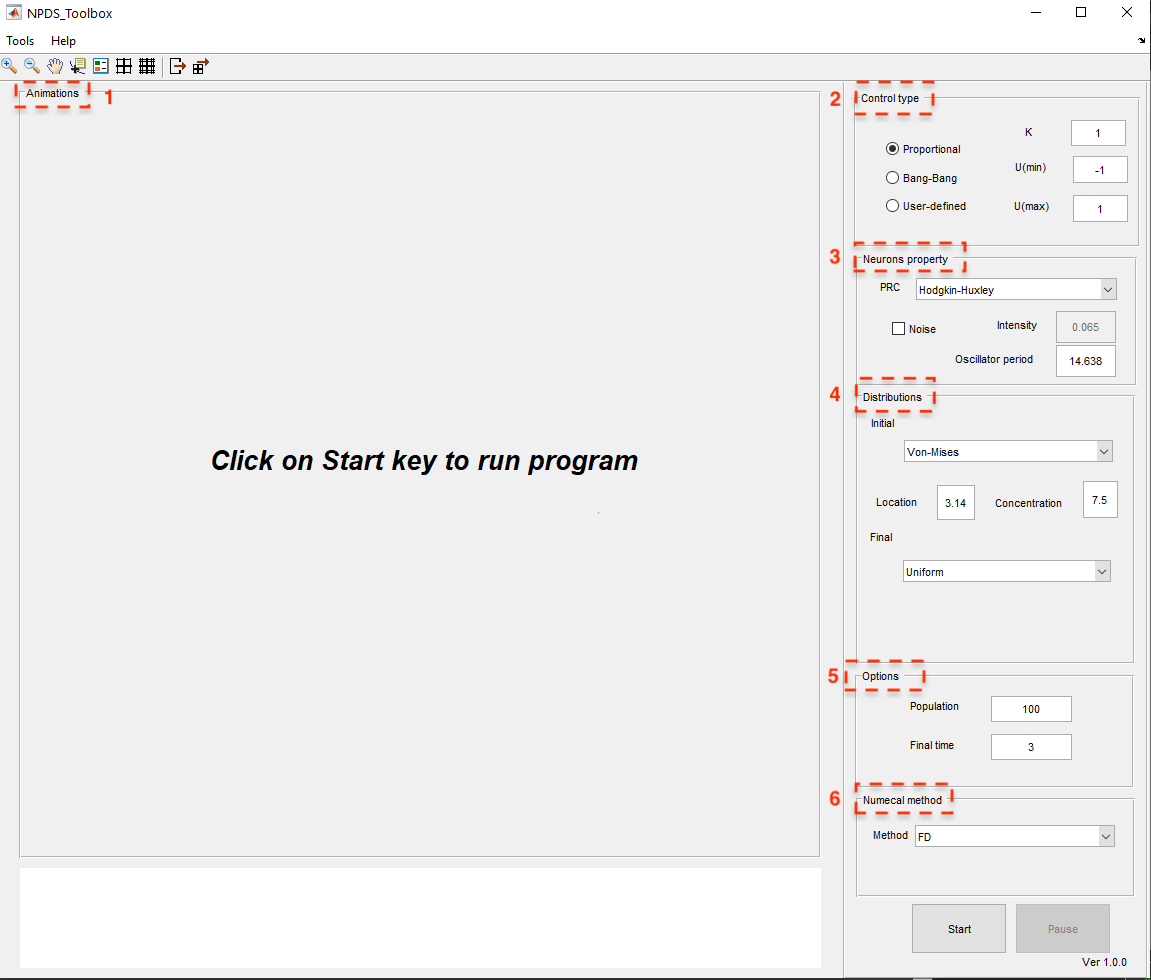
The graphical user interface (see Fig. 1.1) is loaded by running NPDSToolbox.m file. Now, the user can change the options from the panels and start the simulation. So, run the following Matlab script:
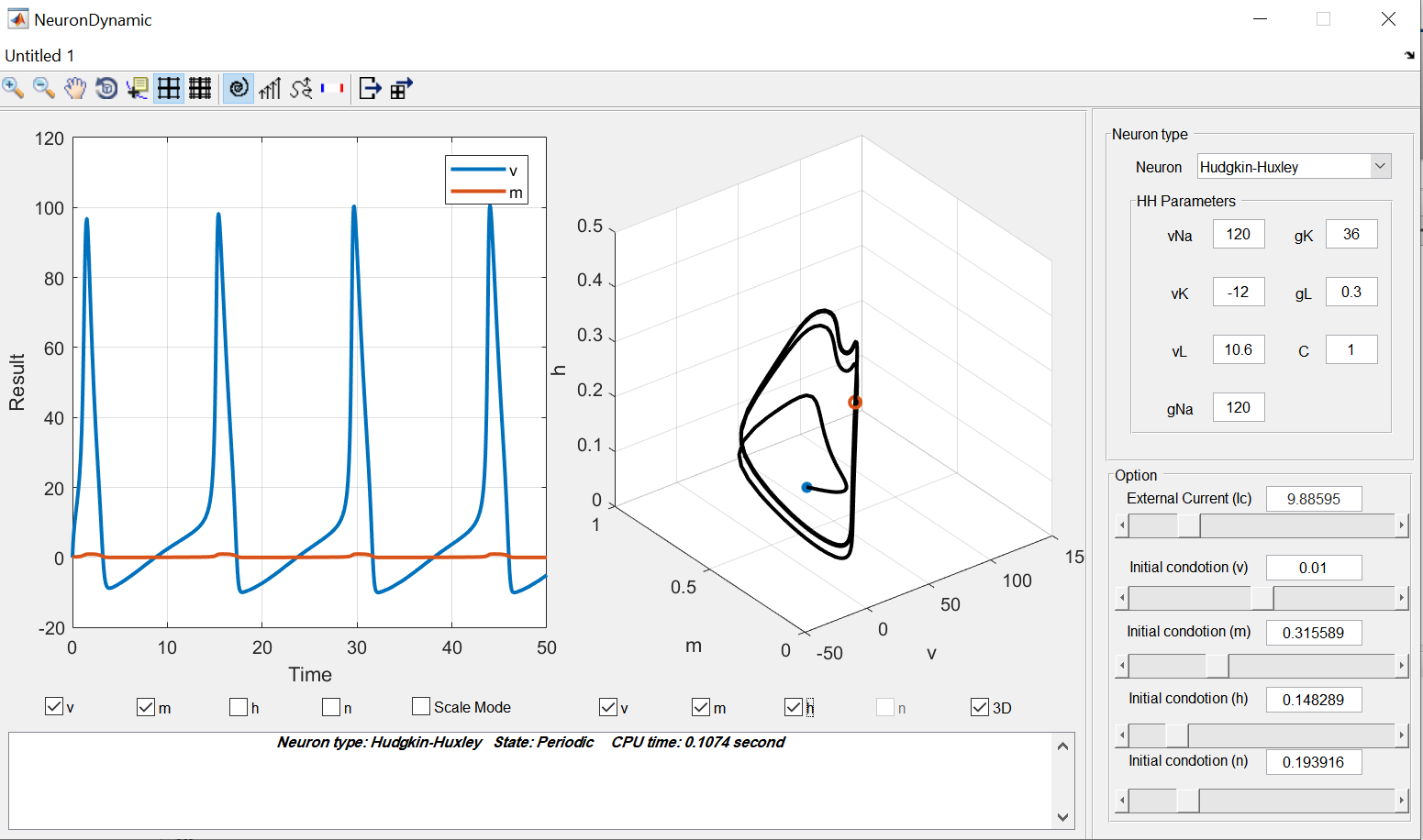
According to Fig. 1.1, the main part of NPDS Toolbox consists of two panels. The left panel contains the results of simulation such as probability phase distribution, control input, error and phase of oscillators during the time. The right panel includes various parts to specify the model, initial and final distributions, control input and numerical method and variables. Moreover, dynamics of the neuron models included in the toolbox can be investigated in NeuronDynamicstab which is available from the Tools in the upper left part of the first tab. This part (see Fig. 1.2) represents the solution of the dynamical model of the selected neuron model according to the parameters. When this part isloaded,it computes the solution automatically with default values. By adjustingany parameter, the solution is recomputed.
The panels in each window have their features that are described in detailin their respective sections.
Fig. 1.2 The graphical user interface showing the dynamics of the includedneural models.